Flat images
These images are used to stimate the variations in the sensibility of the CCD, it is stimated by some previous images of a uniform lighting surface, with different exposition times.
Operation files
The aim of the flat images is to stimate this variation, for this, the flat images must be combined in only one image and subtract the master bias and master dark, called master flat.
For this, you could write a list file with the path of each image (same as the bias section) and indicate the keyword of the fits heads which has the information of the exposure time, writing the name of this keyword in the time keyword entry.
flats/flat_1.fits
flats/flat_2.fits
flats/flat_3.fits
However, you could indicate the times manually, writing AUTO in the time keyword entry and writing the times in the list file, as the following example.
flats/flat_1.fits  30
flats/flat_2.fits  90
flats/flat_3.fits  180
Flat estimation
To estimate the master flat put AstroCanvas in flat mode and write the name of the list file in the flat images entry. You can also select an area of the image writing the limits in the Crop image entries.
The master bias and master dark are indicated in the master bias and master dark entries respectively, you can write the name of a fits file (you should ensure that it has the same size as flat images) or a number.
There is also an option to select the combination of all the images (combining images entry), this can be by the median or the average (pixel by pixel) of the images.
To obtain the arcs spectra, press the make master flat button and, after the processing, the master flat appears in the canvas.
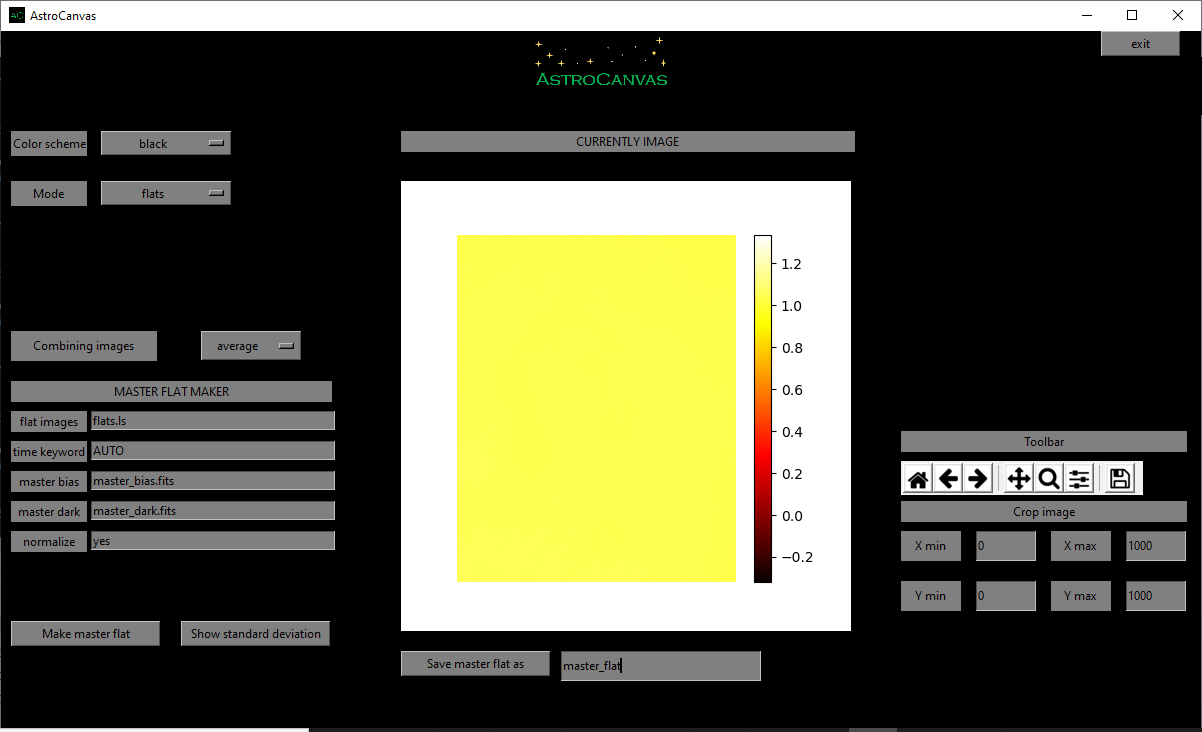
fig. 3 screenshot of Astrocanvas in flats mode plotting a master flat image.
In addition, a image with the standard deviation could be shown in the canvas with the show standard deviation button.
The Matplotlib toolbar is available in the right of the window with its basic functions.
When you make a flat image, the terminal shows some information, the average, the standard deviation, the maximun value and the minimun value of the master flat pixels and also the size of the master dark, an example is shown below.
Normalization of master flat
Due to the information of the counts of each pixel, the master flat is usually normalized, for this you must write yes in the normalize entry.
When you make a flat image, the terminal shows some information, the average, the standard deviation, the maximun value and the minimun value of the master flat pixels and also its size, an example is shown below.
Flat image
------------
average= ( 1.0000000000000002 )
standard deviation= ( 0.13328751786898824 )
max= ( 1.3356704032007536 )
min= ( -0.3170071258596234 )
size= 1000 X 1000
Finally, you can save the master flat writing a name and clicking on the Save master flat as button.